
User guide
Validate YAML
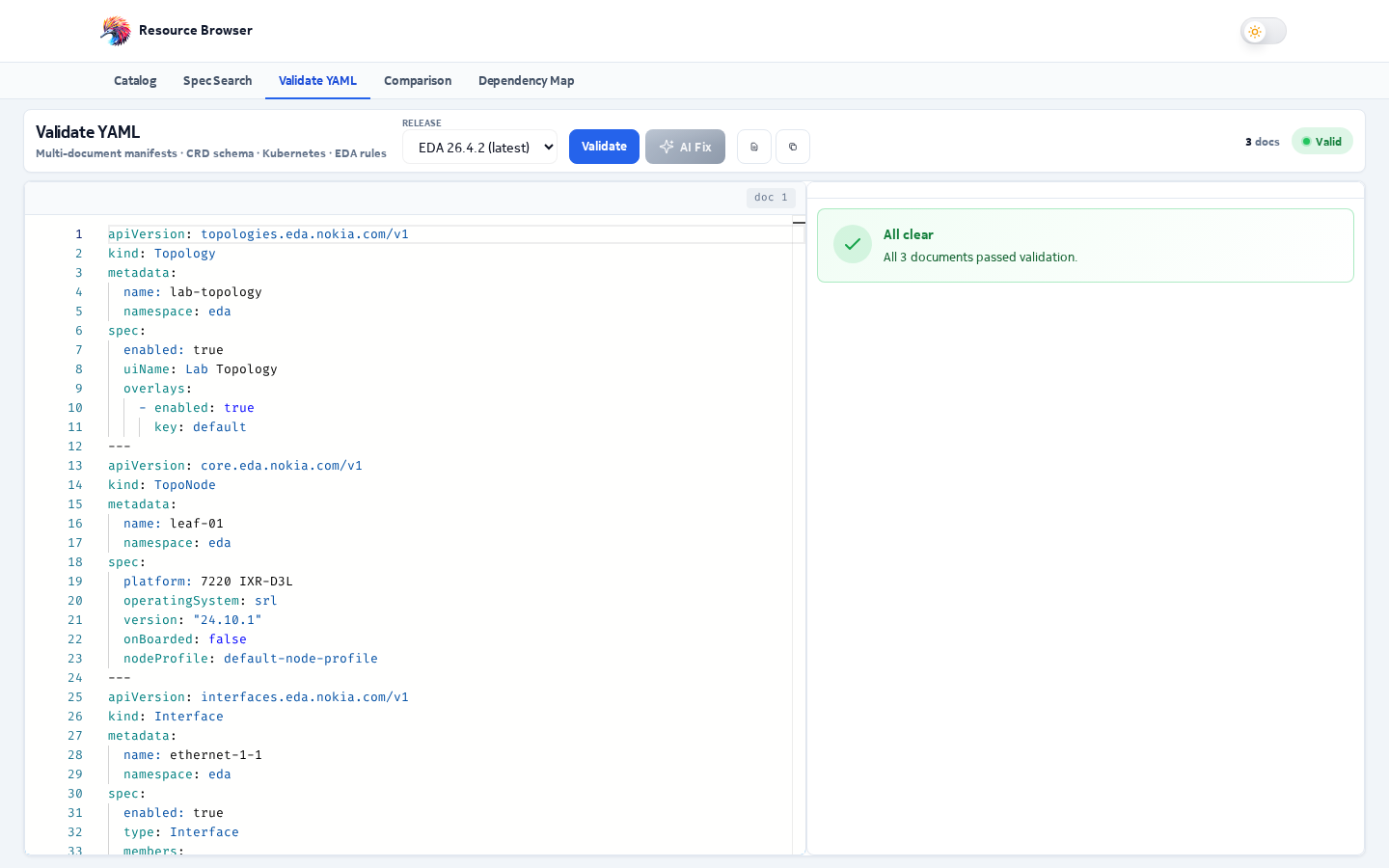
Check EDA manifests against the real CRD schemas of a release, understand each error, and fix it by hand, automatically or with AI.
Validate YAML (/validate-yaml) checks your EDA resource manifests against the CRD schemas of
the release you choose, in an editor with inline errors, completions, hover help and quick fixes.
Using it
- Pick the target release your manifests are for.
- Paste or type YAML. Several documents separated by
---are validated together. Input is limited to 512 KiB. - Errors, warnings and hints appear as you type (about half a second after you stop), underlined in the editor and listed with filters: All, Errors, Warnings, Info.
- Fix issues one by one, from the editor's lightbulb, or all at once with AI Fix.
Your YAML stays in this page only: it is not stored in the browser and is gone when you leave the page. Validation runs in your browser; the document is sent to the server only when you use an AI feature (AI Fix, AI preview, More detail). Use Copy, Download or Copy share link to keep it.
Toolbar
| Button | What it does |
|---|---|
| Load example | Replaces the editor with a small valid bundle |
| Copy | Copies the YAML |
| Copy share link | Copies a link that contains the YAML (compressed in the URL); opening it loads the same text and release |
| Download | Saves the YAML as eda-manifests.yaml |
| Insert example… | Appends a ready-made example for common kinds (Fabric, Interface, BridgeDomain, VirtualNetwork, BGP, routing policies, …), taken from the Nokia EDA documentation and validated against the release |
Keyboard
| Keys | Action |
|---|---|
| Ctrl+Enter | Validate now |
| F8 / Shift+F8 | Next / previous issue |
| Ctrl+. | Quick fix for the issue on this line |
| Ctrl+Z | Undo — including fixes applied by the tool |
What gets checked
Checks run in a Web Worker, so typing stays smooth on large bundles; if the browser can't start the worker, the same checks run on the page.
flowchart LR
  Y["Your YAML"] --> P["1. Parse every document"]
  P --> K["2. Kubernetes rules"]
  K --> S["3. Find the CRD and the declared version"]
  S --> J["4. JSON Schema validation"]
  J --> X["5. Kubernetes schema extras"]
  X --> B["6. Bundle rules"]
  B --> R["Errors, warnings, info"]
- Parsing: YAML syntax errors, with line numbers.
- Kubernetes rules:
apiVersionformat, resource names (DNS subdomain and label rules), label keys and values, andmetadata.namespace— required for namespaced kinds; for cluster-scoped kinds (Topology, Cluster… kinds, …) a namespace is flagged as ignored. - Schema lookup: the document's
kindand API group are matched to a CRD in the selected release, and the version the document declares is used. A deprecated version is still checked against its own schema, with a deprecation warning. - Schema validation: types, required fields, enums, patterns, ranges, lengths and formats
(
ipv4,date-time,uri,int32, and Kubernetesdurationsuch as30sor1h30m). Messages name the field, the value found and the rule, for examplespec.vlan is 5000; it must be <= 4094. - Kubernetes schema extras:
- unknown fields the schema doesn't define (with rename or relocate suggestions);
- duplicate items in
setlists and duplicate keys inmaplists (x-kubernetes-list-type); - CEL rules (
x-kubernetes-validations) are shown as Info hints — the cluster enforces them, this page doesn't evaluate them; - booleans that aren't lowercase (
True,FALSE).
- Bundle rules: the same resource (kind, namespace, name) defined twice, duplicates that
use different
apiVersions, and references to resources that aren't in the bundle — for example a BridgeInterface whosespec.bridgeDomainnames a BridgeDomain the bundle doesn't define. These are Info notes (the resource may already exist in the cluster); namespaces are taken into account, and only fields the release's dependency graph knows to hold a resource name are checked.
status is validated only for documents without spec (for example exported state). When both are
present, a warning explains that status is written by the controller.
Schemas are downloaded once and cached with their compiled validators, so revalidating is fast.
Upgrade check
Planning an EDA upgrade? Pick a newer release in Upgrade check (next to the release picker). The page validates the same YAML against that release too and shows:
- Breaks on the target release — errors only the newer release reports: removed or renamed fields, new required fields, changed types or enums, removed or deprecated API versions;
- New warnings on the target release;
- how many current issues the upgrade fixes.
Click an item to jump to its line, or Switch to … to validate against the target from now on. The comparison is exact because it uses the target release's real schemas, not a summary of release notes.
flowchart LR
  Y["Your YAML"] --> A["Validate on current release"]
  Y --> B["Validate on target release"]
  A --> C["Compare issues by document, field and message"]
  B --> C
  C --> R["Breaking, new warnings, fixed by upgrading"]
Migrating a deprecated version
When a document uses a deprecated apiVersion, its issue has a Migrate to vN button. It:
- rewrites
apiVersionto the latest version; - wraps values that became objects in the new schema — for example BridgeDomain
macLearning: truebecomesmacLearning: { enabled: true }— keeping your formatting and comments; - runs the regular one-click fixes (renames, moved fields) against the new schema;
- shows a before/after review you can keep or revert.
Anything that still needs a decision stays in the issue list, where AI Fix can take over.
Understanding an issue
Each issue on a spec field has an Explain button. It shows, straight from the CRD schema and
at no cost:
- the field's type and format, whether it is required, allowed values, default, range, length or pattern, and its description;
- for a field that doesn't exist, the fields allowed at that level.
More detail (AI) asks Workers AI for a plain-language explanation of the field. Answers are cached, so a second request for the same field is instant.
Fixing issues
| Option | What it does | Uses AI? |
|---|---|---|
| Fix on an issue, or the lightbulb | Applies a known correction: rename a misspelled field, move a field, set an allowed value, fix a format | No |
| AI preview on an issue | Shows an AI fix as a side-by-side diff before you apply it | Yes |
| AI Fix (all issues) | Deterministic fixes first, AI only for what's left, then a before/after review you can revert | Partly |
Every applied fix can be undone with Ctrl+Z.
How AI Fix works
sequenceDiagram
  participant E as Editor (read-only while fixing)
  participant D as Deterministic fixer
  participant A as /api/ai
  E->>D: Up to 3 rule-based passes, revalidating after each
  alt YAML still doesn't parse
    E->>A: Syntax fix
    A-->>E: Verified YAML
  end
  loop Until clean, up to 5 passes and 12 attempts per document
    E->>A: Fix the next issue not tried yet
    A-->>E: Verified fix, or "not fixable"
    E->>E: Revalidate, keep the fix only if that issue is gone
  end
  E->>E: Before/after review (revert possible)
- The server checks every AI answer before returning it (see AI & caching), so you only receive fixes that pass validation for the reported issue.
- An issue the AI couldn't fix is not sent again; a fix that doesn't remove its issue is rolled back.
- The editor is read-only while fixing. Cancel stops the run and keeps the fixes made so far.
Warning AI fixes are suggestions. Always review the before/after view, especially values like IP addresses, names and references that the AI can't verify against your cluster.