
User guide
Catalog & CRD detail
Search the CRDs of a release, read their spec and status schemas, link to fields and compare versions.
The Catalog is the home page (/). It lists every CRD in the selected EDA release and opens
each one in a detail window with two tabs: Schema and Compare.
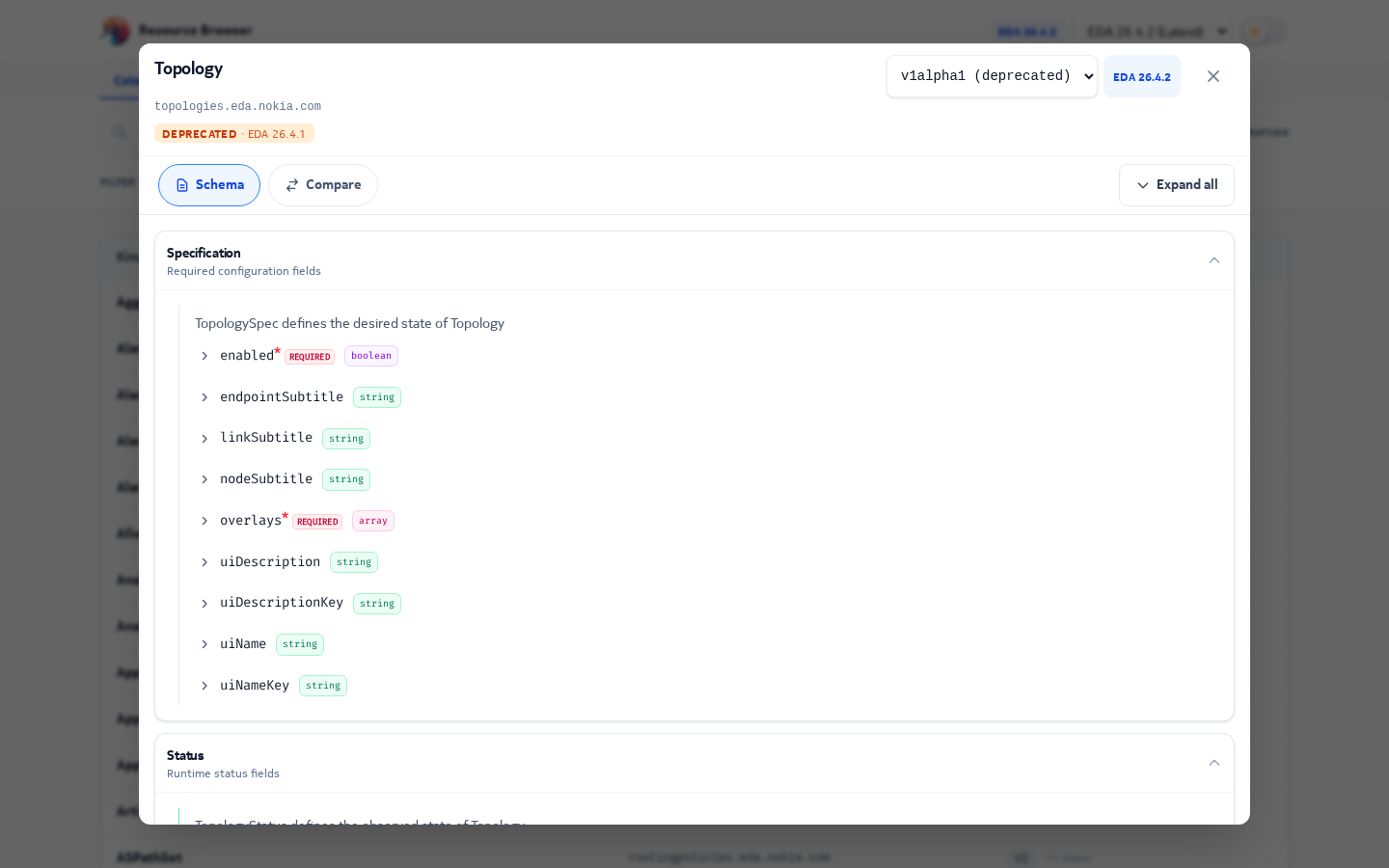
Using the catalog
- Categories and API groups. The catalog opens on the categories (the same ones as the API
reference: Core platform, Fabric and topology, Routing and protocols…) as tiles. The sidebar lists
them with their CRD counts; a category opens to its API groups (
aaa,core,protocols…). The groups come from the release's CRD manifest, so they follow whatever a release ships; the mapping of groups to categories issrc/lib/openapi/apiCategories.ts, and a unit test fails if a group of any release has none. On a phone, categories and groups are a drop-down. - Search (/) always covers every CRD of the release, by kind, name or group, even with a group selected.
- Filter between All, Config and State CRDs. State CRDs (names containing
states, such asinterfacestates.interfaces.eda.nokia.com) hold status reported by EDA rather than configuration you write. - The table is grouped by API group: kind, scope, versions (the latest first; deprecated ones struck through) and full CRD name. Entries the manifest lists without versions, or without a group, are still shown (under other).
- Switch releases with the header's release switcher or from the homepage.
The CRD window
Schema tab. Shows spec and status from openAPIV3Schema as a tree: each field with its
type, whether it's required, enum values, defaults and description. Use the version selector to
switch between API versions of the CRD.
Compare tab. Picks another release (or version) and shows the schema differences side by side for this one CRD.
Deprecated since. For a deprecated version, the window shows the first release where it was marked deprecated. The site works this out by scanning every release's manifest from oldest to newest.
Linking to a field
Each field has a # button that copies a link like:
/?release=26.8.2&crd=Interface&version=v1#spec.membersOpening the link selects the release, opens the CRD at that version, scrolls to the field and
flashes it. Several fields can be highlighted at once: #spec.a|spec.b.
How search ranks results
Every word you type must appear somewhere in the CRD's name, kind or group. Matching CRDs are then scored per word, and the highest total wins:
| Match | Points |
|---|---|
| Kind is exactly the word | +1000 |
| Kind starts with the word | +500 |
| Kind contains the word | +100 |
| Short name (first part of the CRD name) is exactly the word | +800 |
| Short name starts with / contains the word | +400 / +50 |
| Group is exactly / contains the word | +100 / +10 |
| Full name contains the word | +1 |
A small penalty (0.01 per character of the full name) makes shorter, more specific names win ties; any remaining ties are sorted alphabetically.
Which version opens by default
When a link doesn't name a version, the catalog opens the newest non-deprecated API version.
Versions are ordered by major number first, then stage (GA > beta > alpha), then stage number:
v2 > v1 > v1beta2 > v1beta1 > v1alpha1.
What happens when you open a CRD
sequenceDiagram
  participant U as You
  participant P as Catalog page
  participant S as Static files
  U->>P: Click a CRD (or open a link)
  P->>P: Update URL ?release&crd&version
  P->>S: GET /resources/{release}/manifest.json (cached in memory)
  S-->>P: CRD list with versions
  P->>P: Pick the requested or latest version
  P->>S: GET /resources/{release}/{crd}/{version}.yaml
  S-->>P: CRD schema
  P->>U: Render spec / status tree
  opt Link has #field
    P->>U: Scroll to the field and highlight it
  end
The manifest of a release is loaded during browser idle time when the page opens, so the first search is instant. Manifests are kept in memory while you use the site.